Start transaction SCOT and go to System Status (View-menu or
F5)
If SMTP is inactive (light blue circle with red dash displayed on
left side) you need to follow the procedure described in this
SOP.
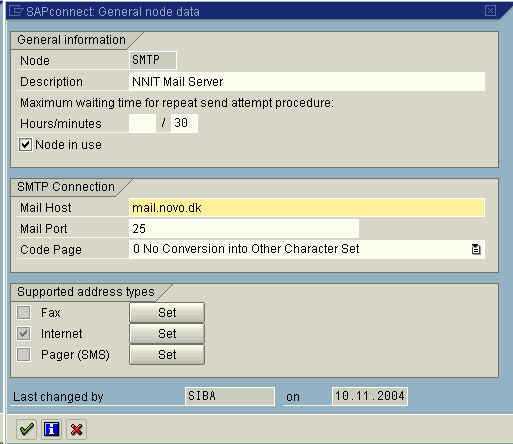
Doubleclick SMTP to display the following dialog and fill in the
values according to the screenshot:
Click the button labelled “Set” adjacent to the checkbox “Internet”
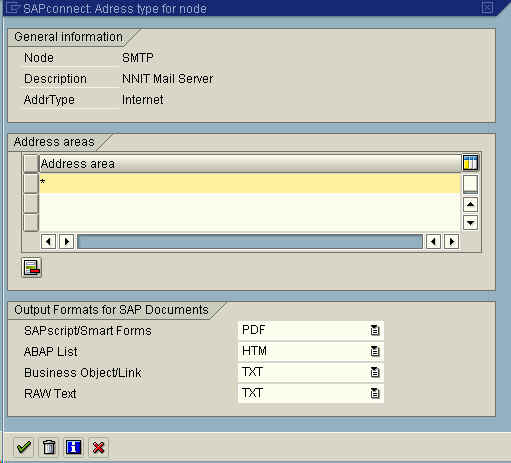
Insert a * (asterisk) in “Address area”
Choose View -> Jobs in the menu and create a new job named “SAP
SMTP MAIL” and variant “INT”.
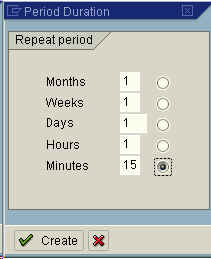
Schedule job periodically (repeat period: 15 minutes).
Choose Back (F3) twice to return to SCOT main menu
Choose Settings -> Default Domain and enter
“novonordisk.com”
Choose Settings -> Confirmation of receipt and choose
“SAPconnect does not expect receipt confirm. for Internet
mail”
Test the new SCOT-configuration by sending a mail to yourself in
transaction S00
| Converted from CHM to HTML with chm2web Standard 2.7 (unicode) |